Maintenance Mode
Maintenance Mode allows you to put a Product Deployment into a dedicated maintenance state. All containers are stopped, and all child stacks are set to Maintenance operation mode. This enables safe execution of maintenance tasks such as database migrations, hardware updates, or planned downtimes. The trigger system ensures that manually activated maintenance cannot be accidentally overridden by the observer.
Overview
Section titled “Overview”| Aspect | Normal Mode | Maintenance Mode |
|---|---|---|
| Product Status | Running | Stopped |
| Stack Status | Running | Stopped |
| Operation Mode | Normal | Maintenance (propagated to all stacks) |
| Trigger | — | Manual or Observer |
| Exit | — | Only by the trigger that activated maintenance |
Trigger Ownership
Section titled “Trigger Ownership”The core principle: Whoever activated maintenance also controls when it ends.
- Manual Trigger: Maintenance was activated by a user via the UI or API. Only the user can end maintenance — the observer has no effect.
- Observer Trigger: Maintenance was automatically activated by the Maintenance Observer. Maintenance is only lifted when the observer reports Normal again.
Step by Step: Activating Maintenance Mode
Section titled “Step by Step: Activating Maintenance Mode”Step 1: Open Product Deployment
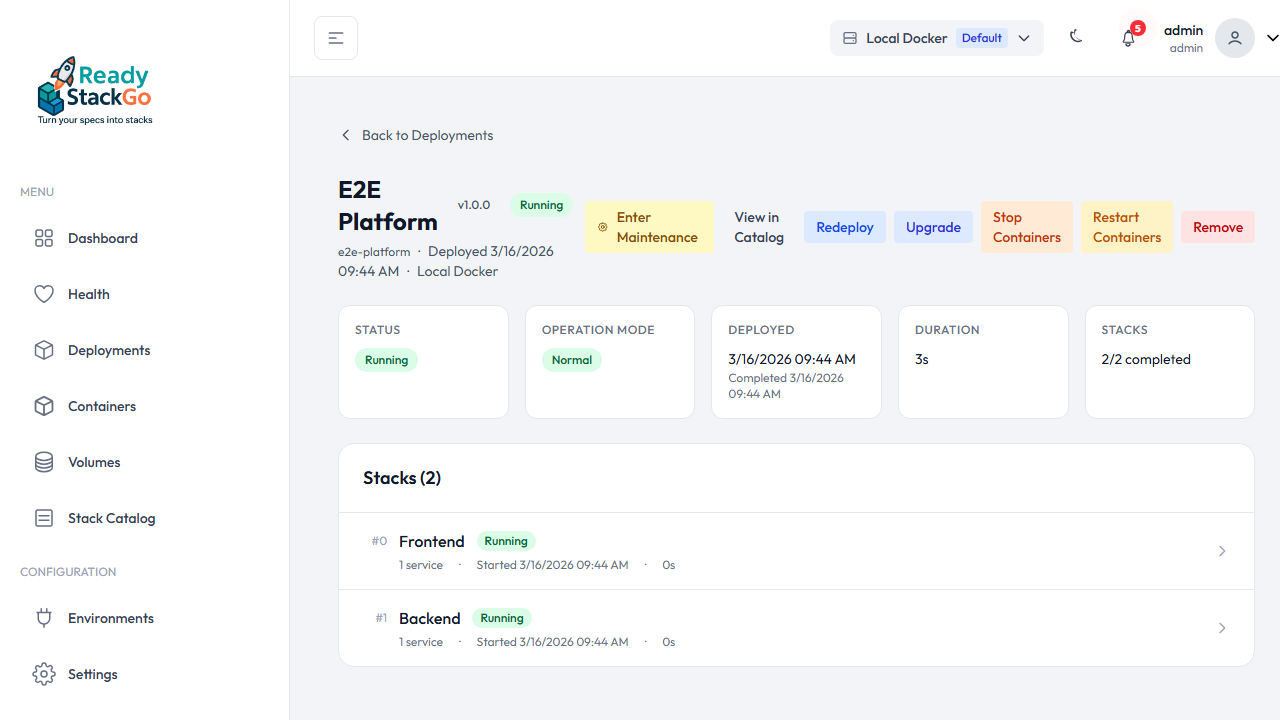
Section titled “Step 1: Open Product Deployment”Navigate to the Product Deployment Detail page. In normal state, you’ll see Operation Mode: Normal in the overview cards and the Enter Maintenance link in the action bar.
Step 2: Review Confirmation Page
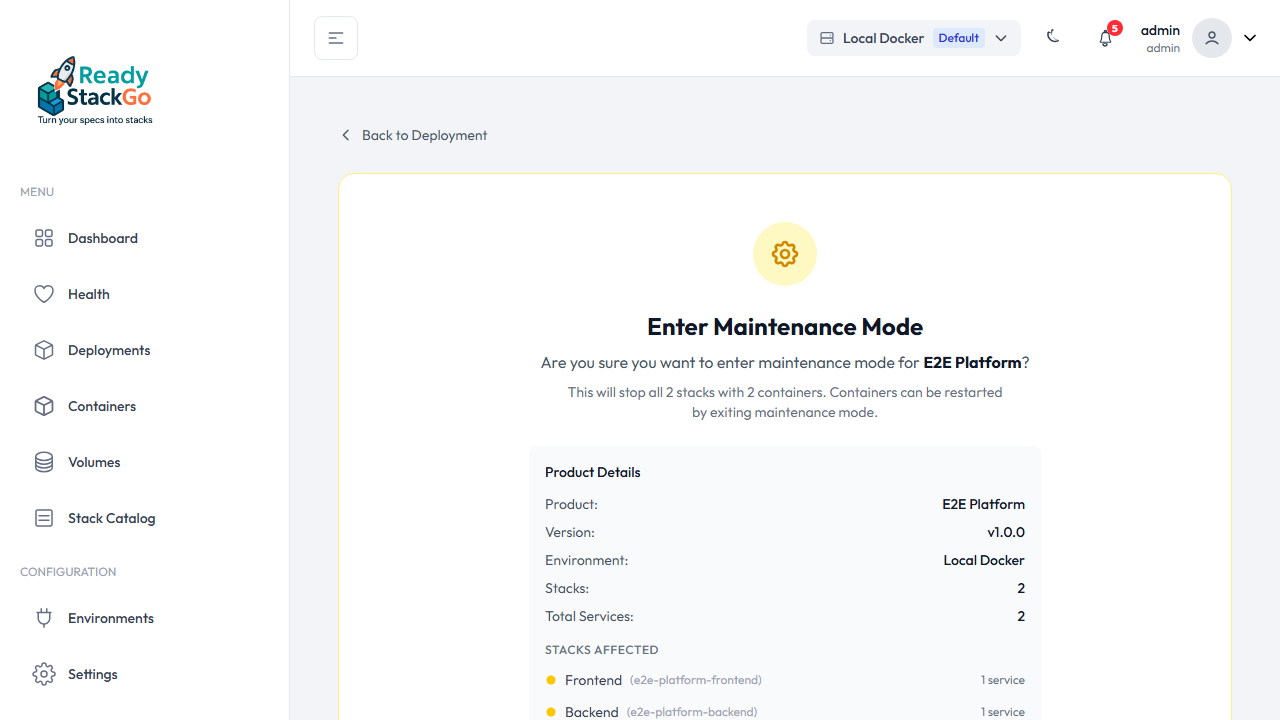
Section titled “Step 2: Review Confirmation Page”Click Enter Maintenance. You’ll be taken to a dedicated confirmation page that shows:
- The product name and version
- The environment
- All affected stacks and their service counts
- A warning that all containers will be stopped
Review the affected stacks before confirming.
Step 3: Confirm and Activate
Section titled “Step 3: Confirm and Activate”Click Enter Maintenance Mode to confirm. ReadyStackGo:
- Sets the product operation mode to Maintenance
- Propagates Maintenance mode to all child stacks
- Stops all containers
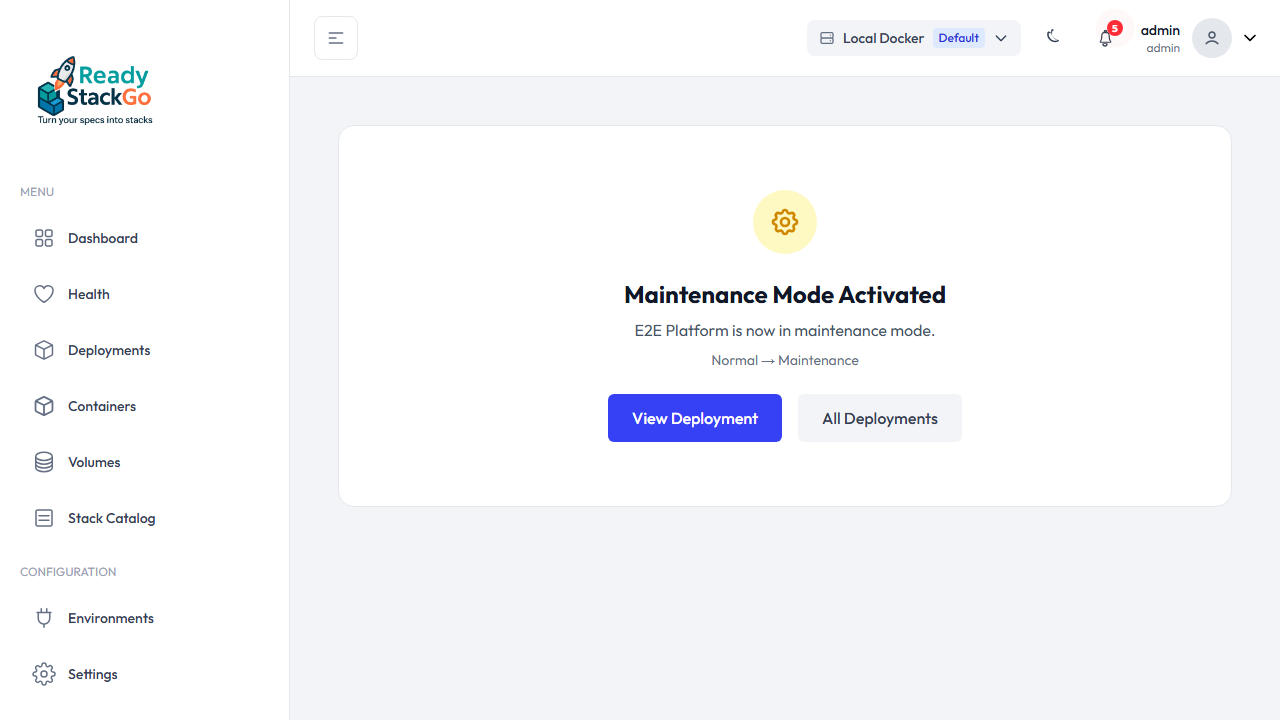
After successful activation, you’ll see a success page with the mode transition (Normal → Maintenance).
Step 4: Stacks During Maintenance
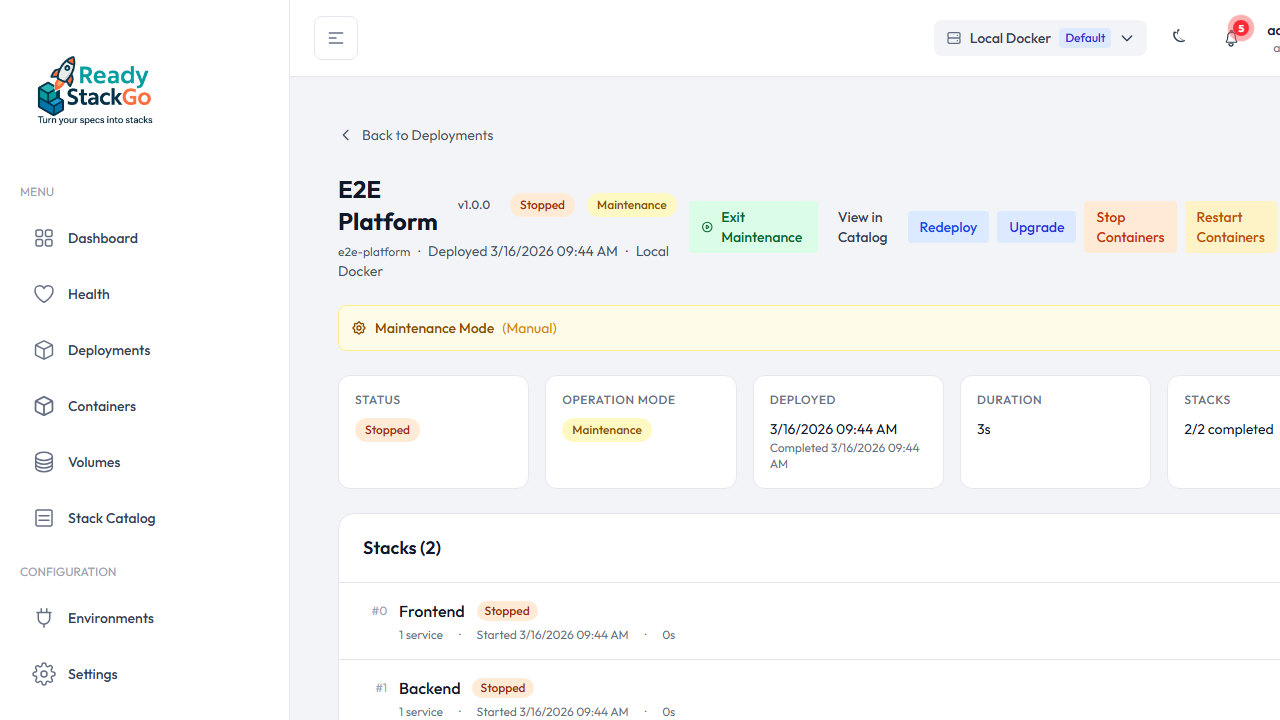
Section titled “Step 4: Stacks During Maintenance”On the Product Deployment Detail page, all stacks show Stopped status during maintenance. The product status also shows Stopped with a Maintenance badge.
Step 5: Exit Maintenance Mode
Section titled “Step 5: Exit Maintenance Mode”Click Exit Maintenance to navigate to the exit confirmation page. It shows the current maintenance info (trigger source, reason, duration) and the stacks that will be restarted.
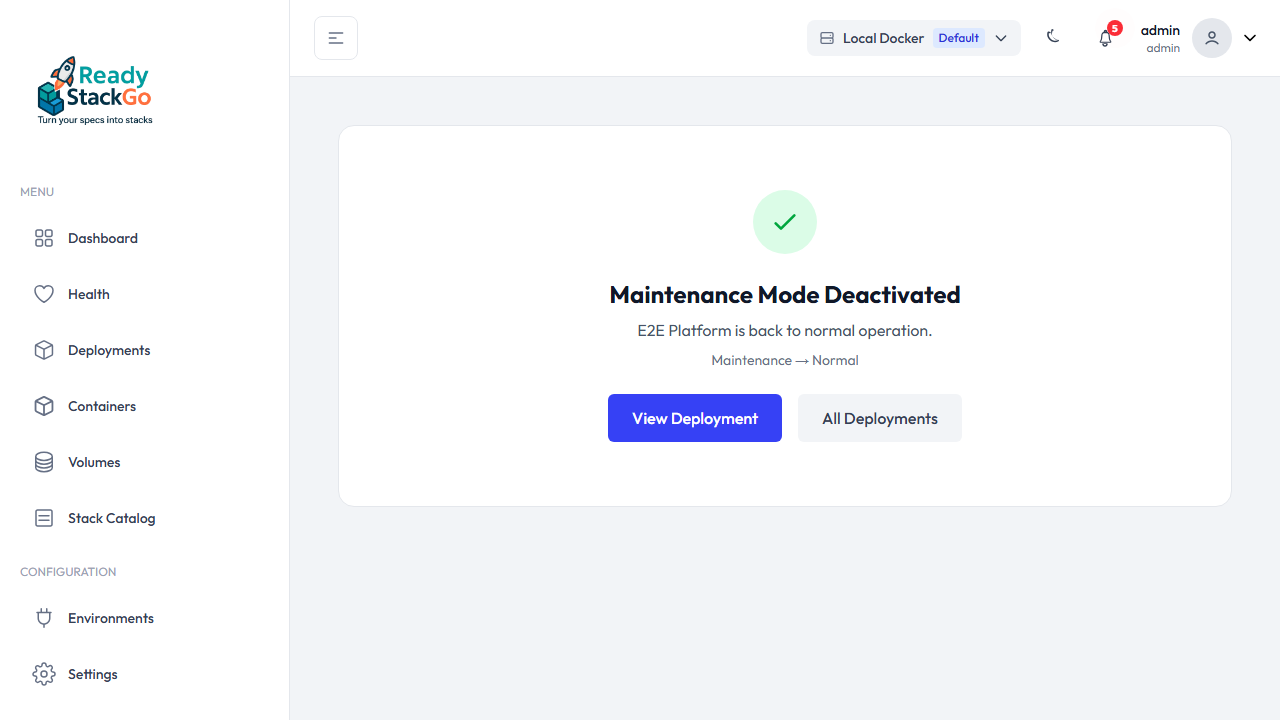
Click Exit Maintenance Mode to confirm. ReadyStackGo restarts all containers and returns the product to Normal operation.
Notifying the product (maintenance setter)
Section titled “Notifying the product (maintenance setter)”By default the maintenance integration is read-only: the observer polls a flag the product sets. That leaves a gap — if an operator starts maintenance inside ReadyStackGo, the product itself never learns about it. The optional maintenance setter closes that gap: it is the mirror image of the observer and actively propagates an RSGO-initiated maintenance state to the product, so the product can warn/drain its clients and its own maintenance flag stays in sync with RSGO.
The setter is declared per product in the manifest (maintenance.setter) and supports two types:
| Type | What it does | Good for |
|---|---|---|
sqlExtendedProperty | Writes the same SQL Server extended property the observer reads | Keeping RSGO and the SQL flag consistent; works even while the product is down |
webhook | POST { "state": "maintenance" | "normal" }, signed with HMAC-SHA256 | A synchronous product reaction (e.g. warning clients) while it is still running |
When it fires:
- Entering maintenance: the setter writes
maintenancebefore containers are stopped. - Exiting maintenance: the setter writes
normalafter containers are started again. - An optional
gracePerioddelays the container stop, giving the product time to drain clients.
The YAML fields are documented in the manifest format reference.
Database access during maintenance
Section titled “Database access during maintenance”Many products need their database exclusively while they maintain themselves — an update switches
it to SINGLE_USER, a restore takes it offline. Yet a SQL observer reads the maintenance flag from
exactly that database. ReadyStackGo handles this explicitly:
RSGO keeps no connection open. Every connection RSGO opens itself for observers and setters is
non-pooled: the session exists only for the duration of a single read and is gone afterwards.
Product routines that wait for all connections to close before taking the database exclusively are
therefore never waiting on ReadyStackGo. The product’s containers are unaffected — RSGO does not build
their connection strings, and they keep their pooling. RSGO’s own sessions carry the application name
ReadyStackGo-Maintenance, so they are unambiguously identifiable in sys.dm_exec_sessions or
sp_who2.
RSGO does not read a database it must not touch. Before every read, a SQL observer checks the
database’s availability in sys.databases over a master connection. master stays reachable while
another database is SINGLE_USER, RESTORING or OFFLINE; the query takes no lock on the target
database and cannot occupy the single-user slot the product’s own update needs. While the database is
unavailable, the observer reports maintenance with an observed value of
database-exclusive (<state>/<user access>) and leaves the database alone.
As soon as it is ONLINE and MULTI_USER again, the next poll reads the flag normally — so the
automatic return to normal operation keeps working, however long the product takes.
API Endpoint
Section titled “API Endpoint”Maintenance mode can also be controlled via the REST API:
PUT /api/environments/{environmentId}/product-deployments/{productDeploymentId}/operation-modeRequest Body
Section titled “Request Body”| Field | Type | Required | Description |
|---|---|---|---|
mode | string | Yes | "Maintenance" or "Normal" |
reason | string | No | Optional reason for the maintenance |
Examples
Section titled “Examples”Activate maintenance:
{ "mode": "Maintenance", "reason": "Scheduled database migration"}Exit maintenance:
{ "mode": "Normal"}HTTP Status Codes
Section titled “HTTP Status Codes”| Code | Meaning |
|---|---|
| 200 | Mode changed successfully |
| 404 | Product deployment not found |
| 409 | Transition blocked — trigger ownership violated (e.g., manually exiting observer maintenance) |
Error Handling
Section titled “Error Handling”| Situation | Behavior |
|---|---|
| Manual exit during observer maintenance | Blocked with HTTP 409 — observer controls the exit |
| Product already in the desired mode | No action, successful response (no-op) |
| Observer reports Normal during manual maintenance | No action — manual trigger takes precedence |