

Single Sign-On
ReadyStackGo can let users sign in through an identity provider. WYSCH is supported out of the box: a guided setup connects your installation to WYSCH ID without typing addresses, client IDs or secrets. Any other OpenID Connect provider (Keycloak, Entra ID, …) works through the template Generic OIDC.
Who may sign in does not change: existing users and people with a pending invitation (see User Access). Roles are always assigned in ReadyStackGo, never taken from the provider.
Sign in with WYSCH during setup
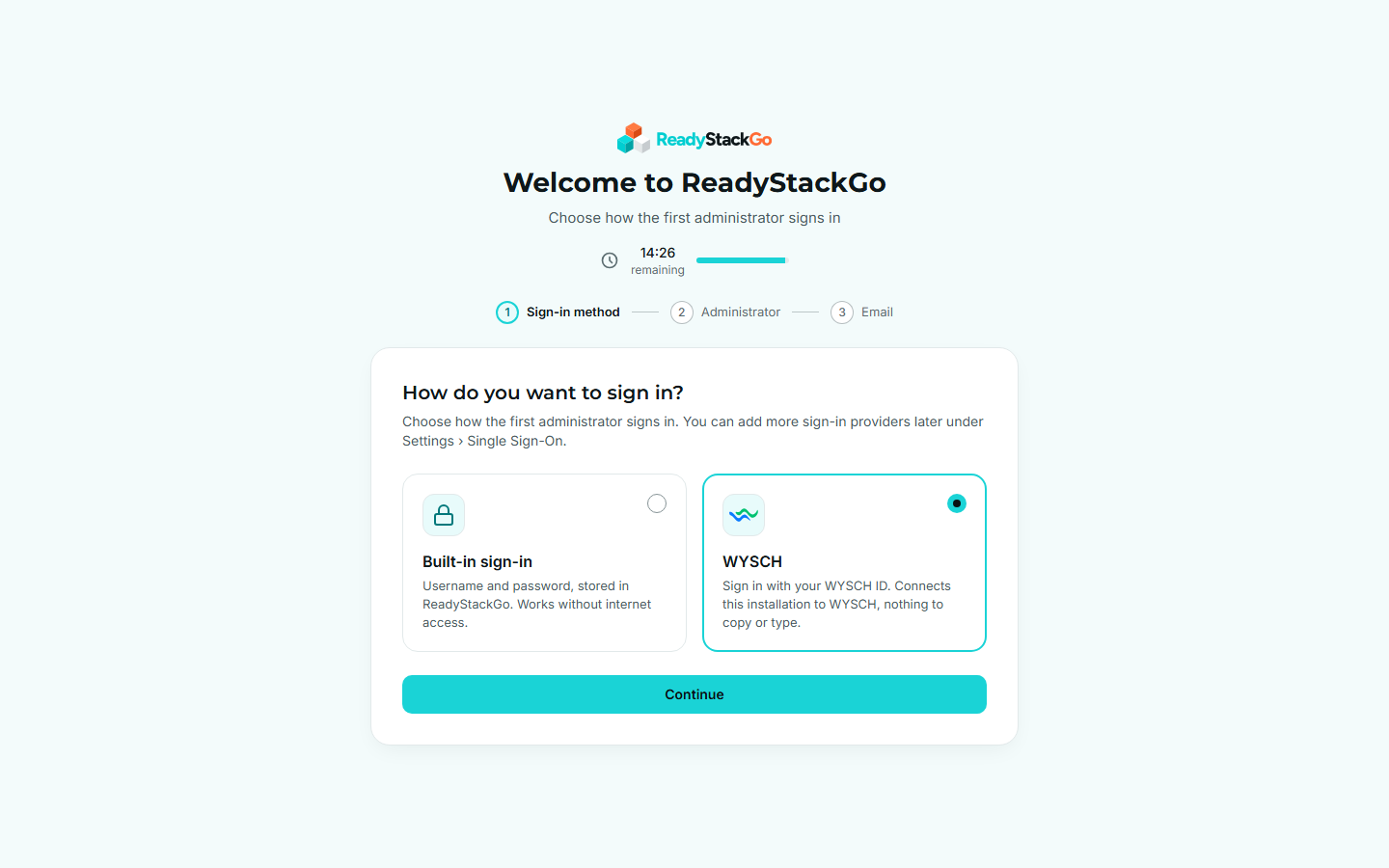
Section titled “Sign in with WYSCH during setup”The setup wizard starts with How do you want to sign in?:
- Built-in sign-in creates the first administrator with username and password, as before.
- WYSCH connects this installation to WYSCH and signs you in with your WYSCH account. That account becomes the first system administrator, without a local password.
- Confirm the address of this installation. ReadyStackGo suggests the address in your browser and saves it as its base URL.
- Click Connect with WYSCH. Sign in at WYSCH and confirm the connection.
- You come back automatically, ReadyStackGo signs you in with WYSCH and shows Signed in as …. Then the email step follows as usual.
If WYSCH is not reachable or the connection is cancelled, the wizard explains why and offers Try again and, while the setup window is open, Use built-in sign-in instead (after the window closed, a restart of the container opens it again). If the sign-in run itself expires, the wizard offers Start again while the setup window is open, otherwise a restart of the container. A sign-in run that started inside the setup window may take up to 15 minutes. The confirmation at WYSCH, including creating a WYSCH account first, has to come back within 10 minutes; after that the wizard offers Try again.
Add a provider
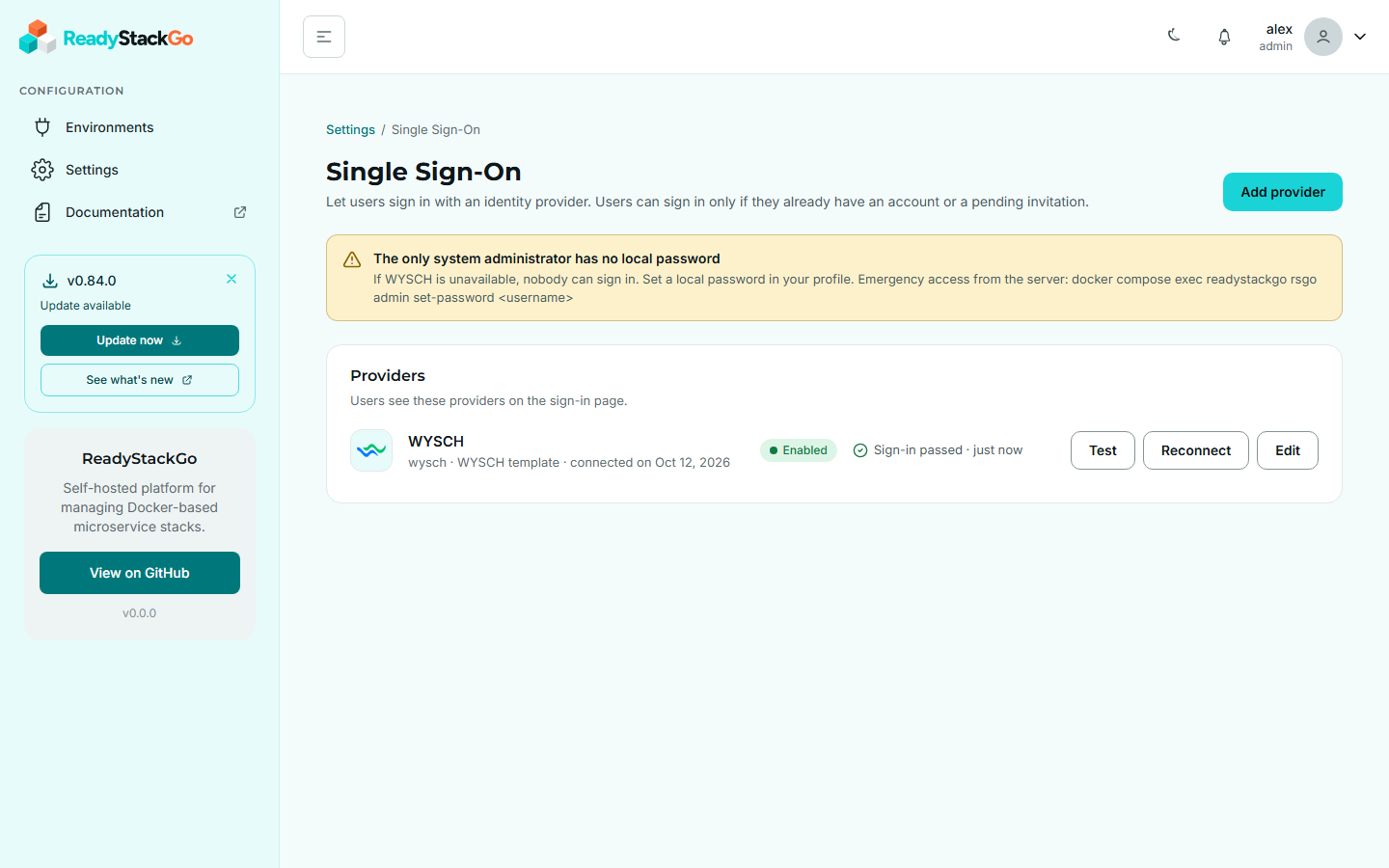
Section titled “Add a provider”Under Settings → Single Sign-On you see all providers with their status and last result, and add new ones with Add provider.
The setup runs in steps; which steps appear depends on the template:
| Step | WYSCH | Generic OIDC |
|---|---|---|
| Template | choose WYSCH | choose Generic OIDC |
| Provider address | fixed by the template | enter the issuer URL; ReadyStackGo checks it right away |
| This installation | address of ReadyStackGo and the provider name (part of the redirect URI) | same |
| Connect / Register | Connect with WYSCH: sign in and confirm at WYSCH, client ID and secret arrive automatically | copy the redirect URI to your provider, then enter client ID and secret |
| Test | checks and test sign-in | checks and test sign-in |
| Save | display name, enable, trust unverified email addresses | same |
The provider name becomes part of the redirect URI https://<your address>/api/auth/oidc/<name>/callback and cannot be changed later.
Test a provider
Section titled “Test a provider”The test has two stages:
- Checks without sign-in run from the server: discovery document reachable, issuer matches the provider address, endpoints present, pushed authorization requests (PAR) where required, and client ID and secret (through a PAR request, if the provider offers PAR). Every failed check says what is wrong and what to do.
- Test sign-in: you sign in once at the provider. ReadyStackGo shows which details arrived (subject, email and whether it is verified, username, display name) and whether they suffice. The test sign-in does not sign you in to ReadyStackGo and does not link an account.
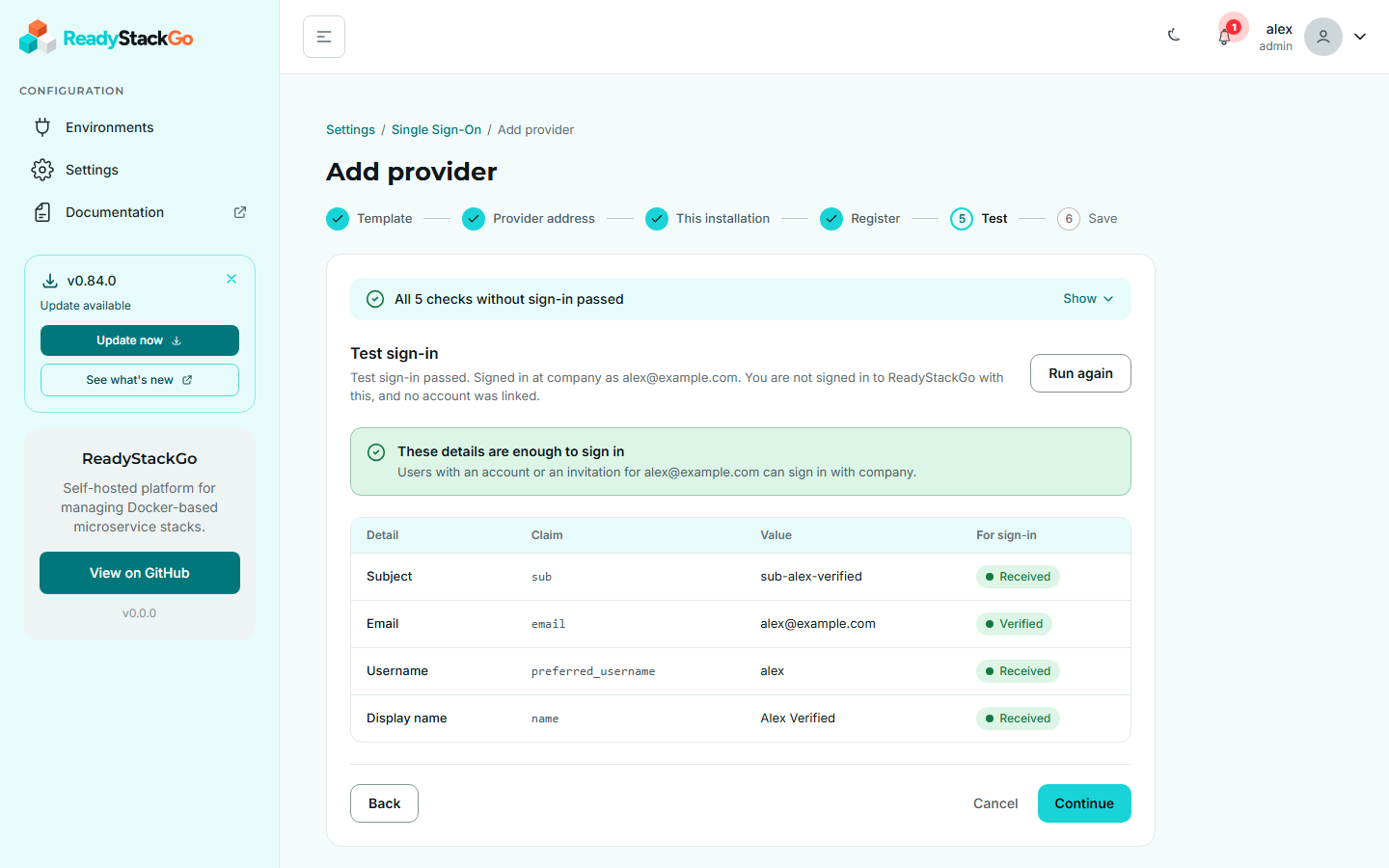
A provider can be enabled only after the checks and a test sign-in passed. Without a passing test you can save it disabled and test it later with Test in the list.
Reconnect
Section titled “Reconnect”If the connection is removed in WYSCH, sign-ins fail and the list shows Reconnect needed. Reconnect pairs the installation again and replaces client ID and secret. WYSCH invalidates the old client as soon as the same WYSCH account confirms a new connection for the same address. ReadyStackGo therefore takes the new credentials over right away, once its check of client ID and secret passed and the new connection belongs to the address the installation signs in with; a test sign-in afterwards confirms the sign-in. If the address of the installation changes while you reconnect, the new credentials take effect only after a successful test sign-in.
Matching accounts
Section titled “Matching accounts”When someone signs in, ReadyStackGo looks for the account in this order:
- An account already linked to this provider and subject.
- Otherwise an existing user or a pending invitation with the same email address, but only if the provider confirmed the address (
email_verified) or Trust unverified email addresses is on. New providers have it off; providers created before this setting existed keep it on. - Anyone else is rejected.
A user linked to this provider with a different identity is rejected rather than relinked. Disabled accounts cannot sign in.
Don’t lock yourself out
Section titled “Don’t lock yourself out”- If you sign in only through a provider and have no local password, that provider cannot be disabled or removed, and a changed connection (provider address, client ID, secret, scopes) takes effect only after a successful test sign-in.
- Unlink in your profile is disabled while you have no local password.
- While no system administrator has a local password, Settings › Single Sign-On and the profile show a warning. Set a password under Profile → Set a local password.
Emergency access
Section titled “Emergency access”If the provider is unavailable and nobody can sign in, set a local password from the server:
docker compose exec readystackgo rsgo admin set-password <username>The command asks for the password twice (or reads one line from standard input with docker compose exec -T …). --generate creates a password and shows it once. With a stopped container use docker compose run --rm readystackgo admin set-password <username>. Every use is logged.
Exit codes: 0 done, 1 user unknown, 2 password does not meet the rules, 3 database not accessible, 64 wrong arguments.
Templates of your own
Section titled “Templates of your own”Providers come from templates. Operators and distributions can add or replace templates without changing ReadyStackGo, see Identity Provider Templates.