User Access, Email & Single Sign-On
ReadyStackGo manages user access through admin invitations: there is no public self-service signup — an administrator invites an email address, and the invited person confirms their access via a link and sets a password. ReadyStackGo also supports login by email or username and single sign-on (SSO) via generic OIDC providers (OpenID Connect).
Overview
Section titled “Overview”| Capability | Description |
|---|---|
| Admin invitation | An administrator invites an email address with a role |
| Email verification | The invitation link proves ownership; your own address can be verified later |
| Login by email or username | Both identifiers work, backwards compatible |
| Single sign-on (OIDC) | Sign in through external identity providers (e.g. IdentityAccess, Keycloak) |
Step 1: Configure email (SMTP)
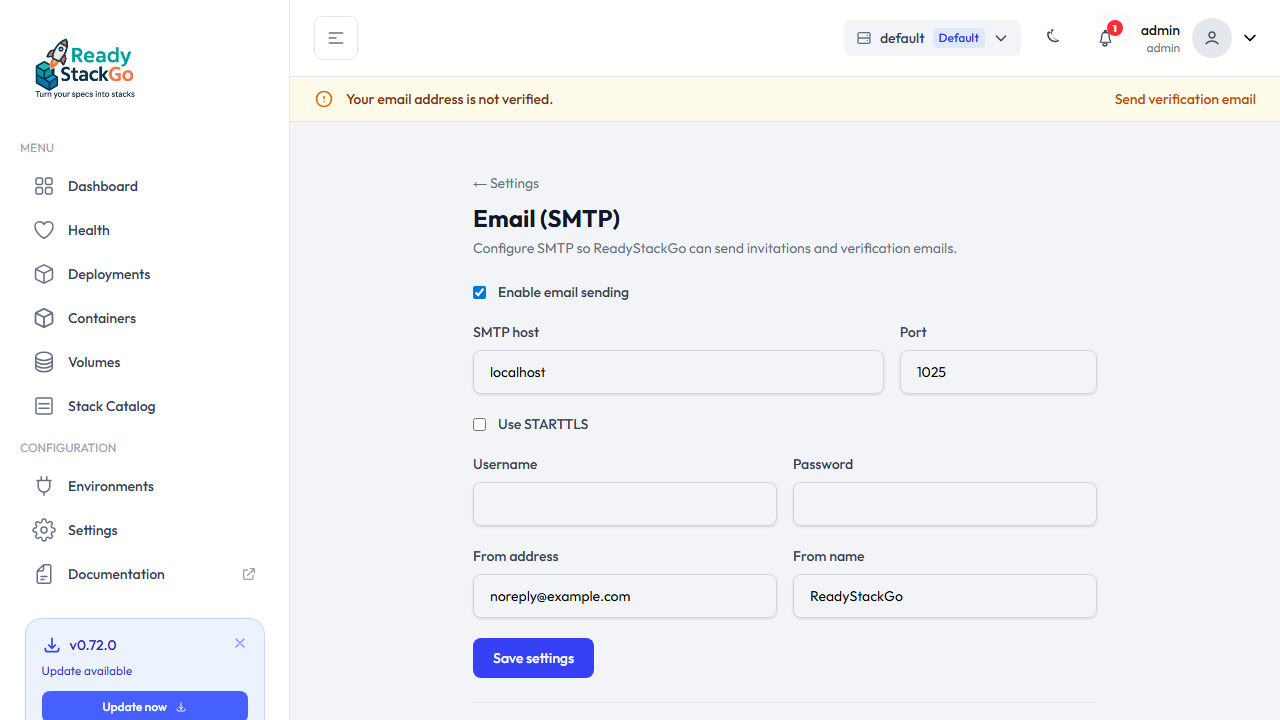
Section titled “Step 1: Configure email (SMTP)”Open Settings → Email (SMTP), enable sending, and fill in host, port, credentials and the from address. Use Send test to send a test message and validate the configuration.
Step 2: Invite a user
Section titled “Step 2: Invite a user”Under Settings → User Invitations you invite a person by email. Choose the role (Viewer, Operator, Organization Owner or System Administrator). For organization-scoped roles also provide the Organization ID; System Administrators are not scoped to an organization.
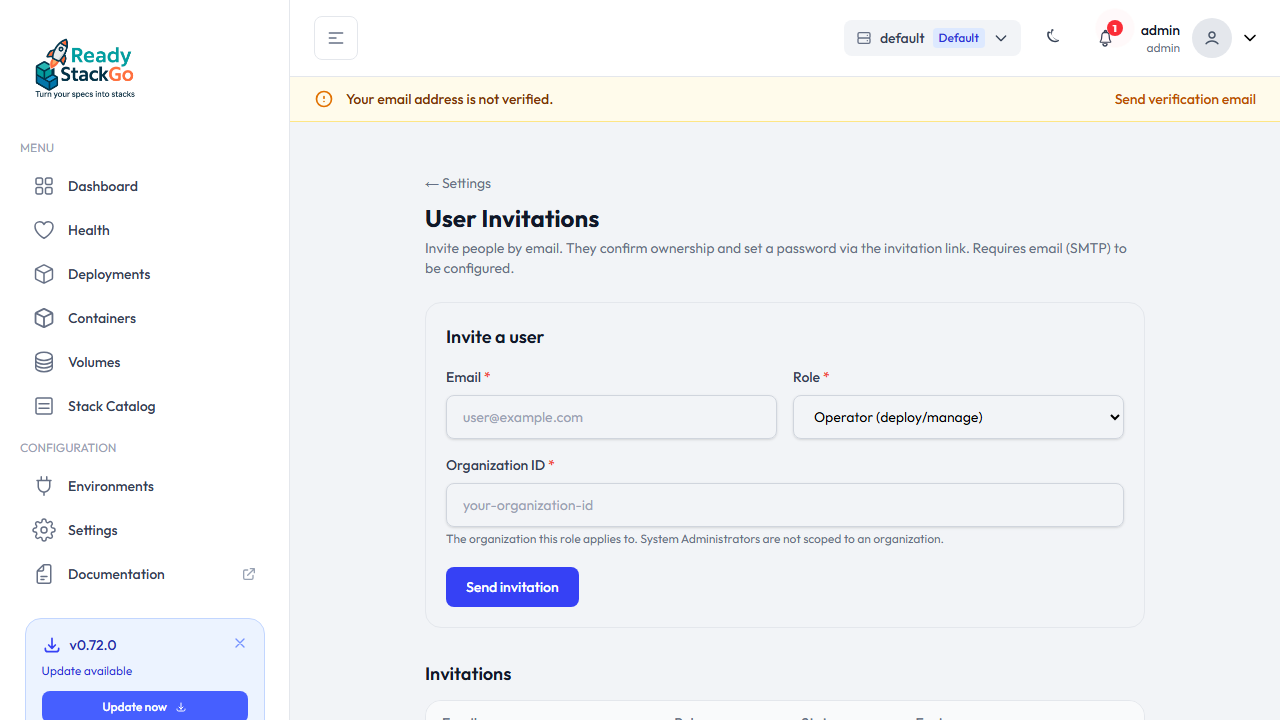
After sending, the invitation appears in the list with status Pending and an expiry date. Pending invitations can be revoked at any time.
Step 3: Accept the invitation
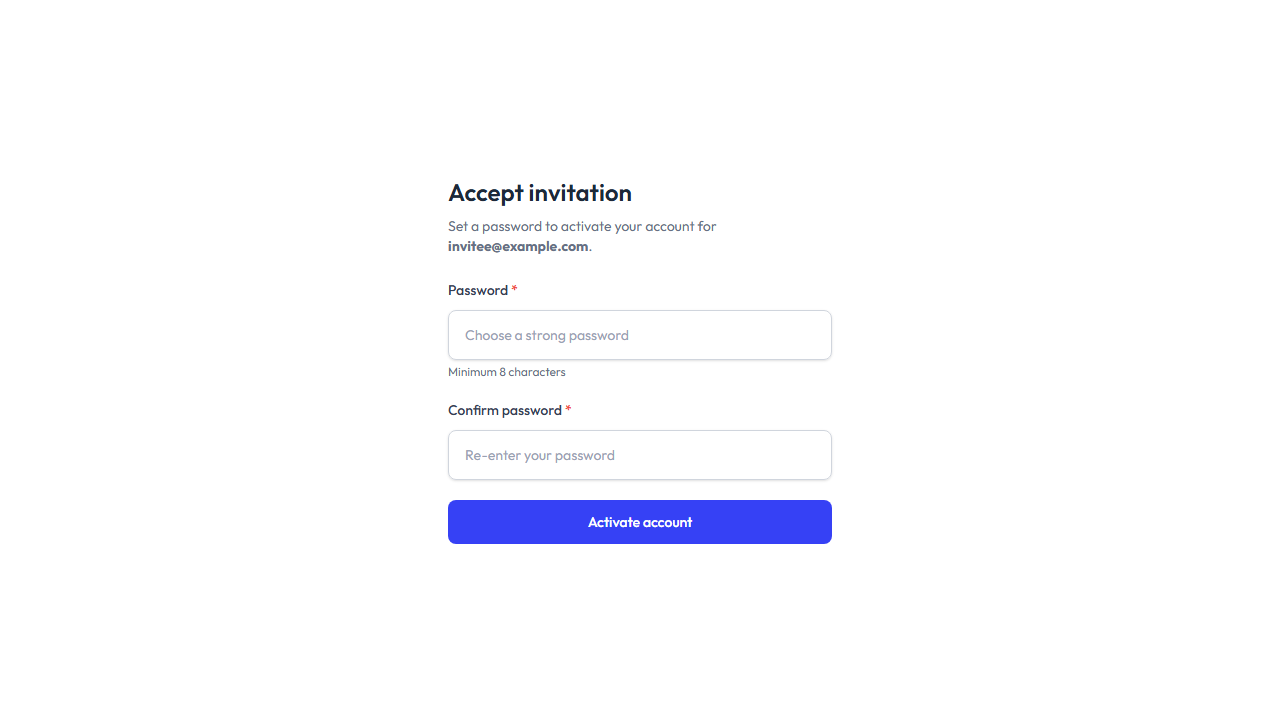
Section titled “Step 3: Accept the invitation”The invited person opens the link from the email (/accept-invite?token=…), sees their
address and sets a password. On acceptance the email address is considered verified (the
link is the ownership proof), the account is activated and the assigned role is granted.
Login by email or username
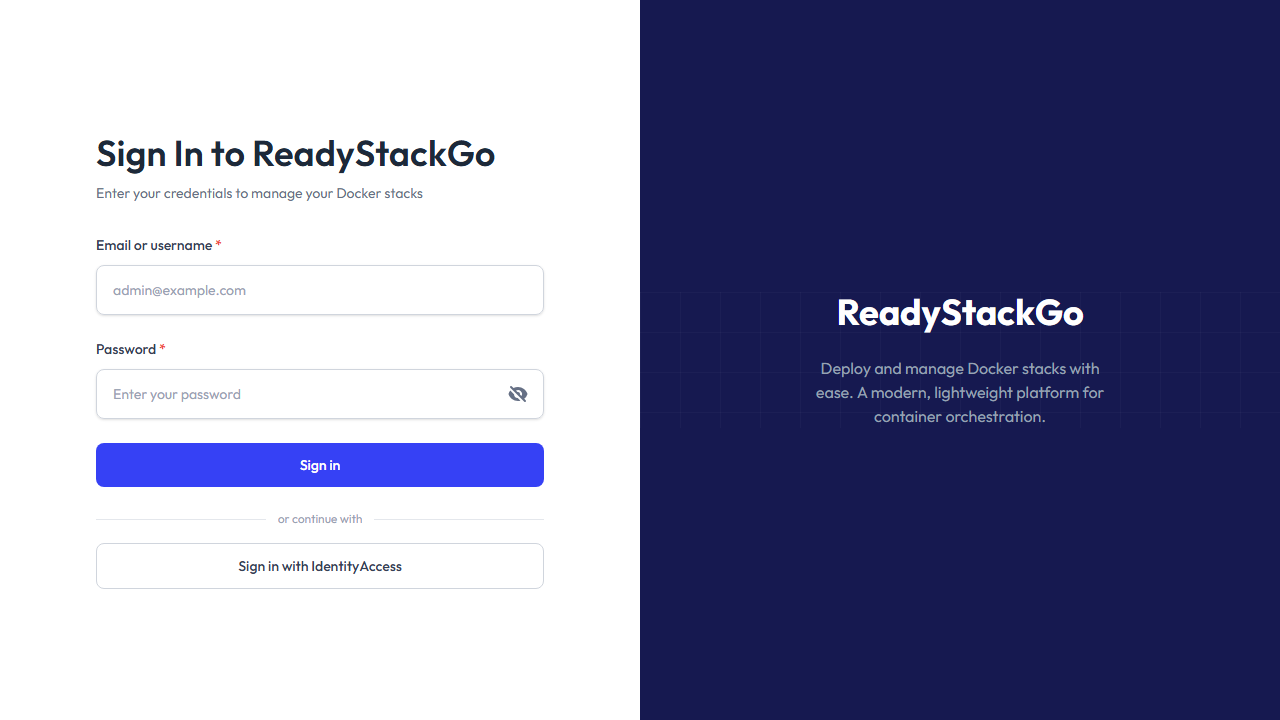
Section titled “Login by email or username”On the sign-in page either the email address or the username can be used. When OIDC providers are configured, “Sign in with …” buttons appear in addition.
Verify your email address
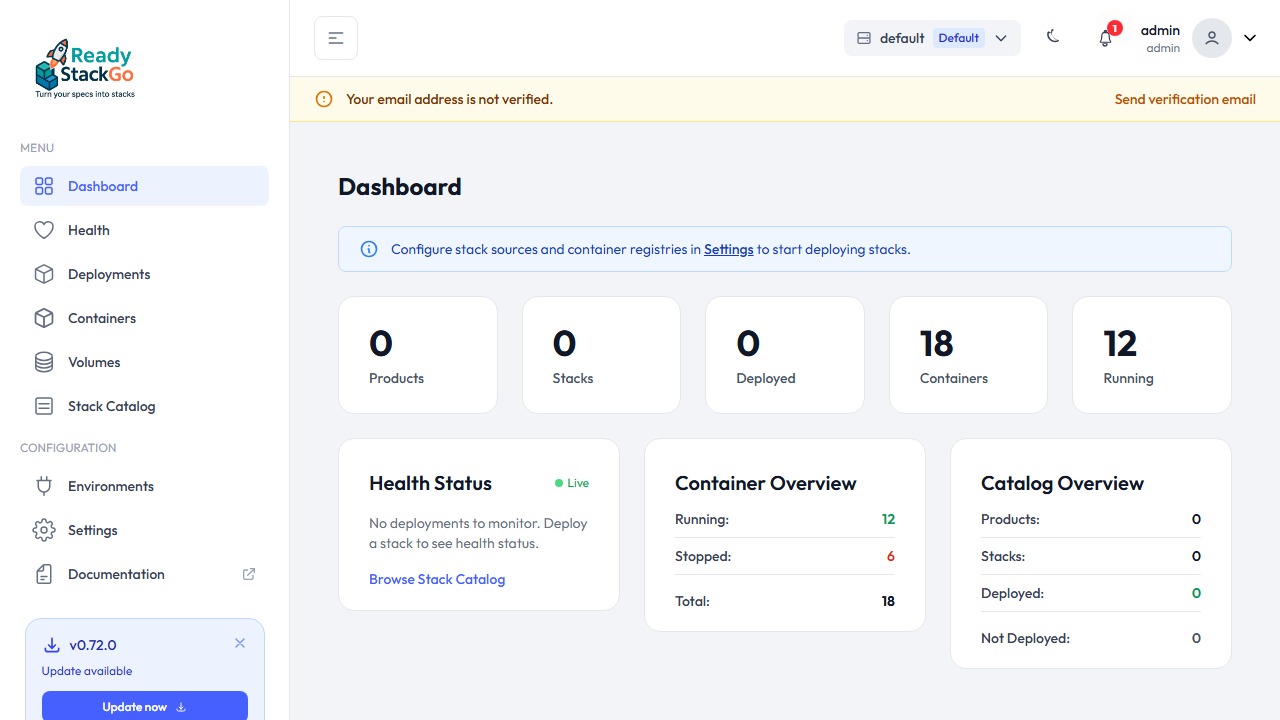
Section titled “Verify your email address”If your own email address is not yet verified and SMTP is configured, a prompt banner appears at the top. Send verification email sends a confirmation link.
Single Sign-On (OIDC)
Section titled “Single Sign-On (OIDC)”Under Settings → Single Sign-On (OIDC) you configure one or more generic OpenID Connect providers. For each provider you set name, display name, authority (issuer URL), client ID, client secret and scopes.
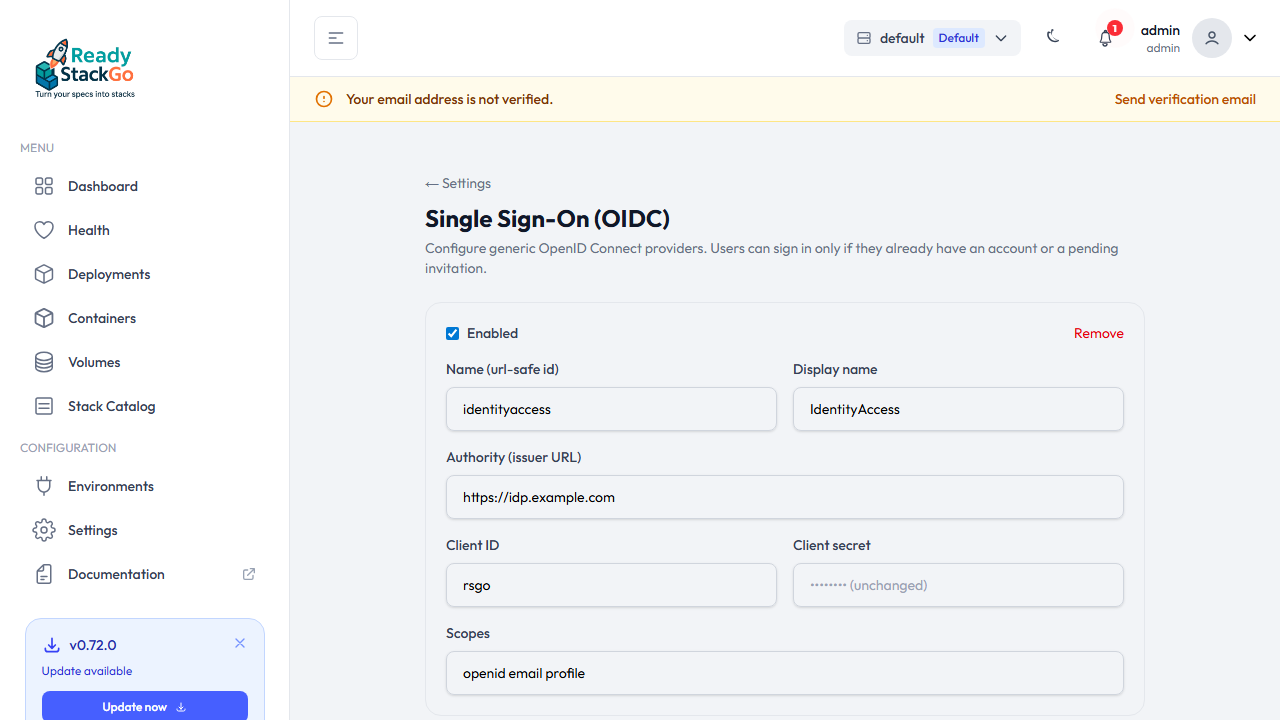
Enabled providers appear as a button on the sign-in page. After a successful login at the provider, ReadyStackGo issues its own session token.
Settings overview
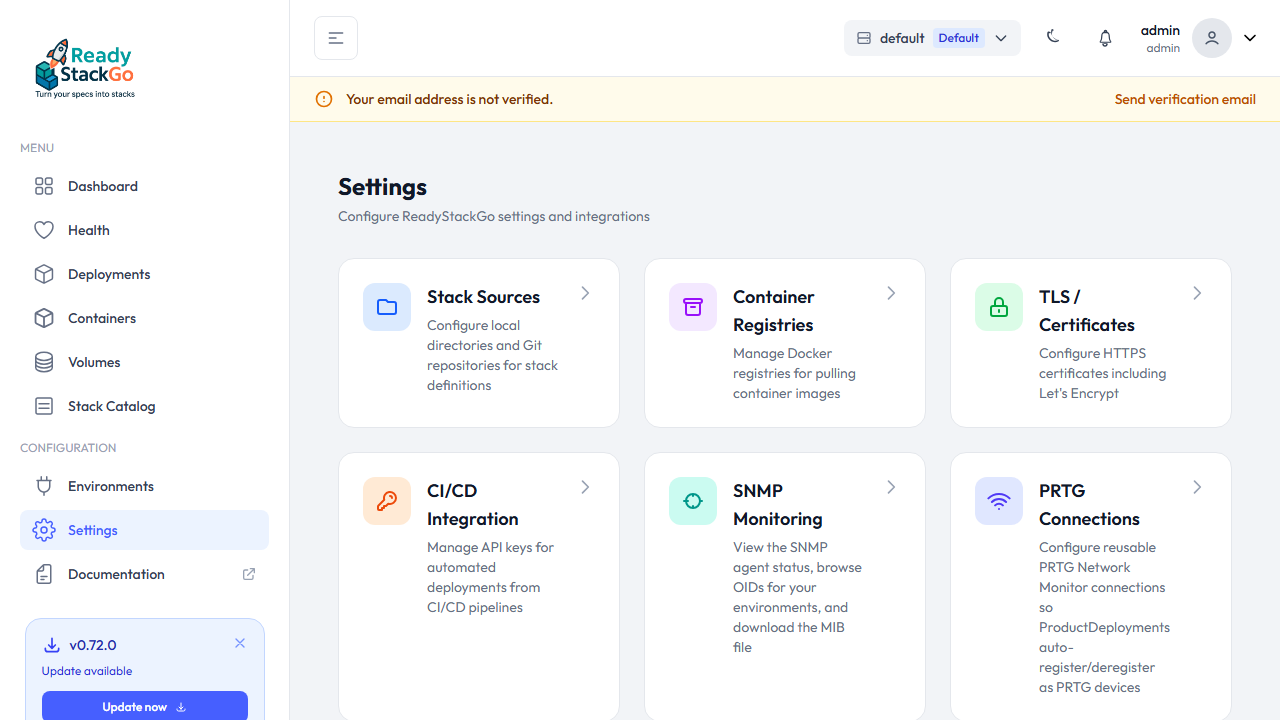
Section titled “Settings overview”All of the above are grouped under Settings.
| Role | Scope | Purpose |
|---|---|---|
| Viewer | Organization | Read-only access |
| Operator | Organization | Manage deployments |
| Organization Owner | Organization | Full access to the organization |
| System Administrator | Global | Full system access |