Maintenance Mode
Maintenance Mode allows you to put a Product Deployment into a dedicated maintenance state. All containers are stopped, and all child stacks are set to Maintenance operation mode. This enables safe execution of maintenance tasks such as database migrations, hardware updates, or planned downtimes. The trigger system ensures that manually activated maintenance cannot be accidentally overridden by the observer.
Overview
Section titled “Overview”| Aspect | Normal Mode | Maintenance Mode |
|---|---|---|
| Product Status | Running | Stopped |
| Stack Status | Running | Stopped |
| Operation Mode | Normal | Maintenance (propagated to all stacks) |
| Trigger | — | Manual or Observer |
| Exit | — | Only by the trigger that activated maintenance |
Trigger Ownership
Section titled “Trigger Ownership”The core principle: Whoever activated maintenance also controls when it ends.
- Manual Trigger: Maintenance was activated by a user via the UI or API. Only the user can end maintenance — the observer has no effect.
- Observer Trigger: Maintenance was automatically activated by the Maintenance Observer. Maintenance is only lifted when the observer reports Normal again.
Step by Step: Activating Maintenance Mode
Section titled “Step by Step: Activating Maintenance Mode”Step 1: Open Product Deployment
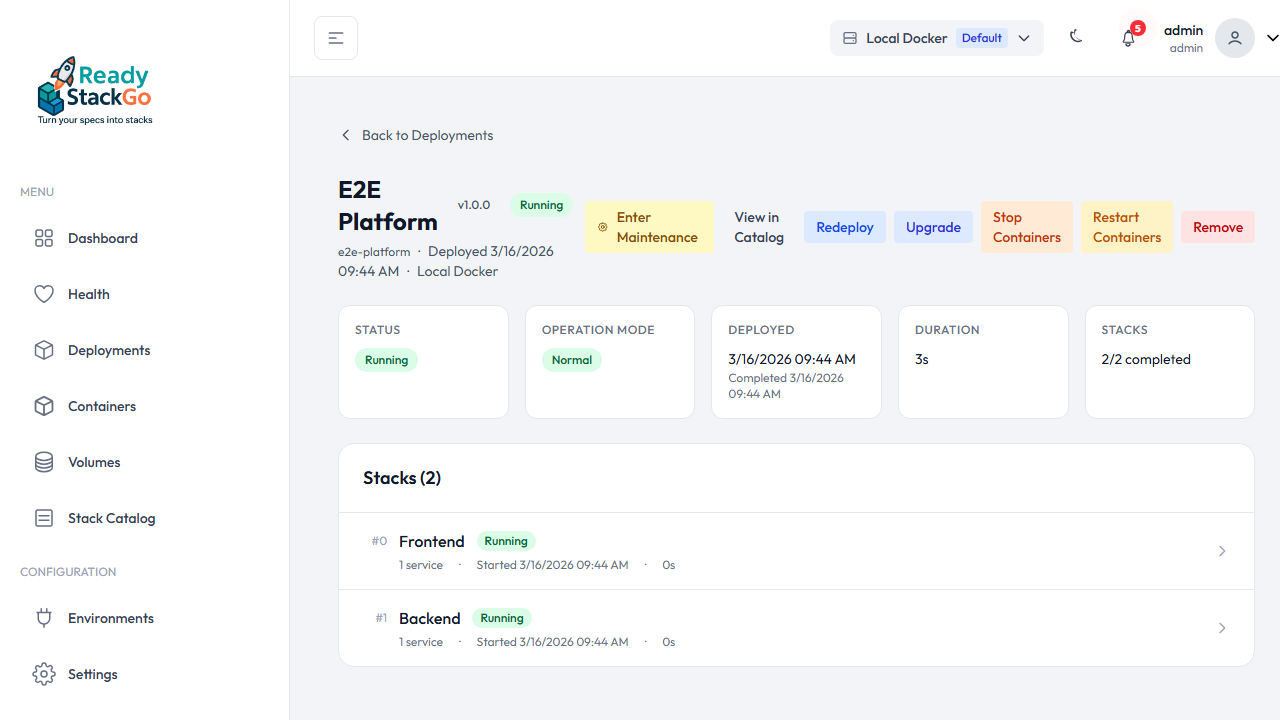
Section titled “Step 1: Open Product Deployment”Navigate to the Product Deployment Detail page. In normal state, you’ll see Operation Mode: Normal in the overview cards and the Enter Maintenance link in the action bar.
Step 2: Review Confirmation Page
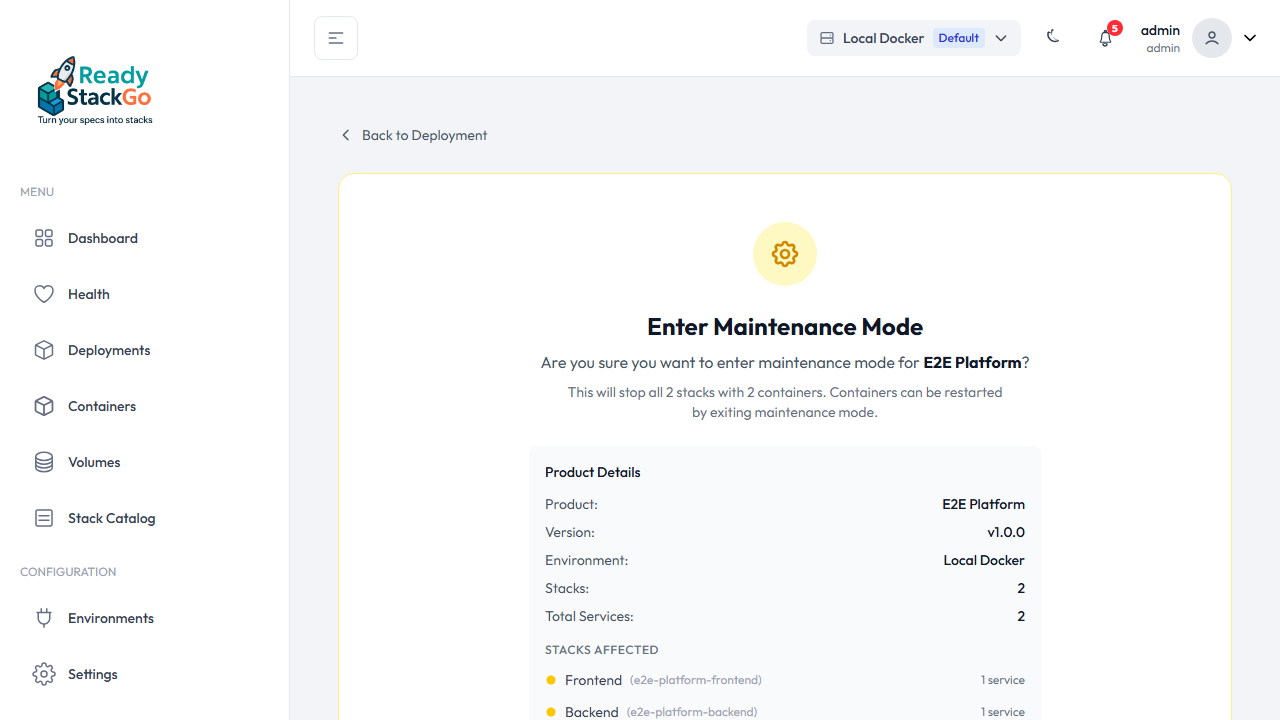
Section titled “Step 2: Review Confirmation Page”Click Enter Maintenance. You’ll be taken to a dedicated confirmation page that shows:
- The product name and version
- The environment
- All affected stacks and their service counts
- A warning that all containers will be stopped
Review the affected stacks before confirming.
Step 3: Confirm and Activate
Section titled “Step 3: Confirm and Activate”Click Enter Maintenance Mode to confirm. ReadyStackGo:
- Sets the product operation mode to Maintenance
- Propagates Maintenance mode to all child stacks
- Stops all containers
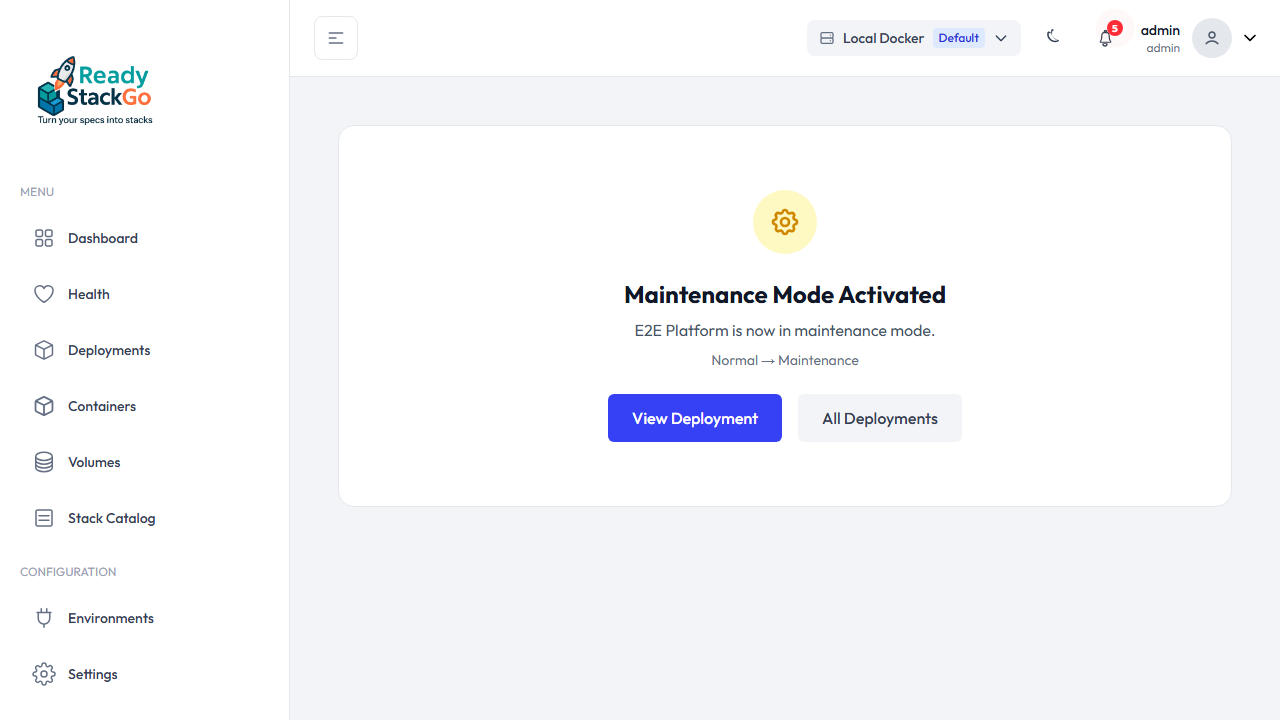
After successful activation, you’ll see a success page with the mode transition (Normal → Maintenance).
Step 4: Stacks During Maintenance
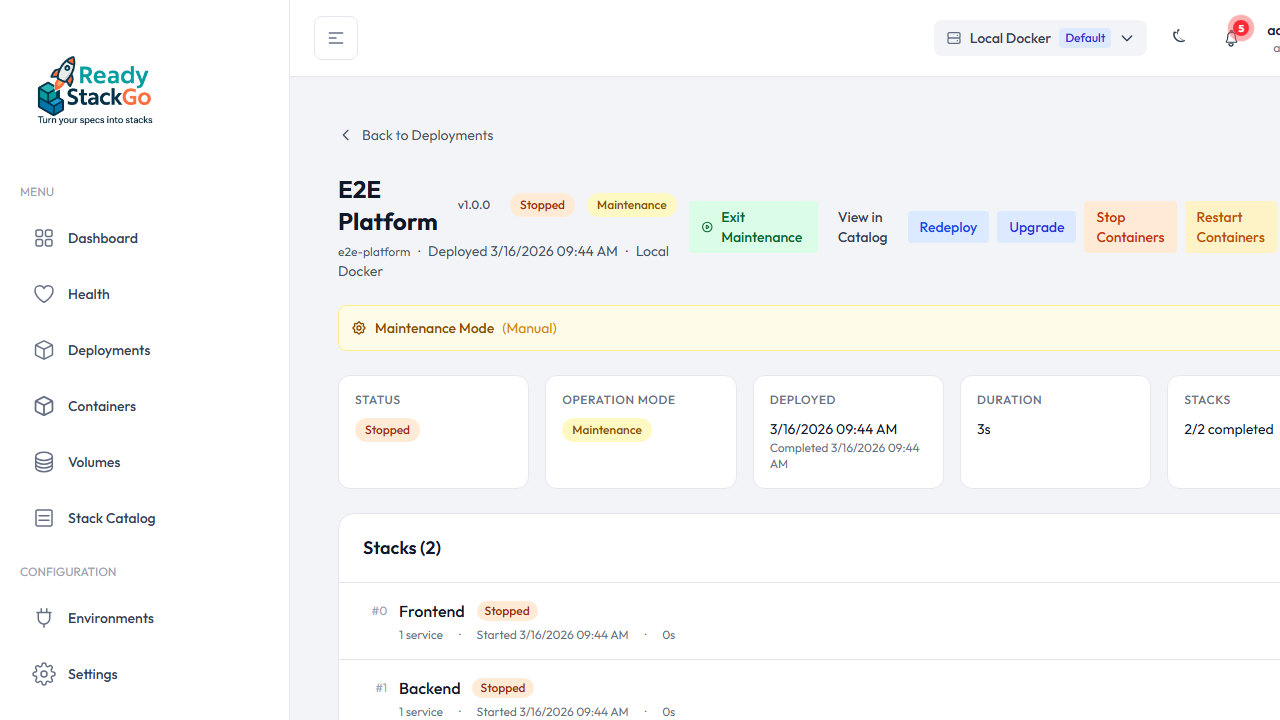
Section titled “Step 4: Stacks During Maintenance”On the Product Deployment Detail page, all stacks show Stopped status during maintenance. The product status also shows Stopped with a Maintenance badge.
Step 5: Exit Maintenance Mode
Section titled “Step 5: Exit Maintenance Mode”Click Exit Maintenance to navigate to the exit confirmation page. It shows the current maintenance info (trigger source, reason, duration) and the stacks that will be restarted.
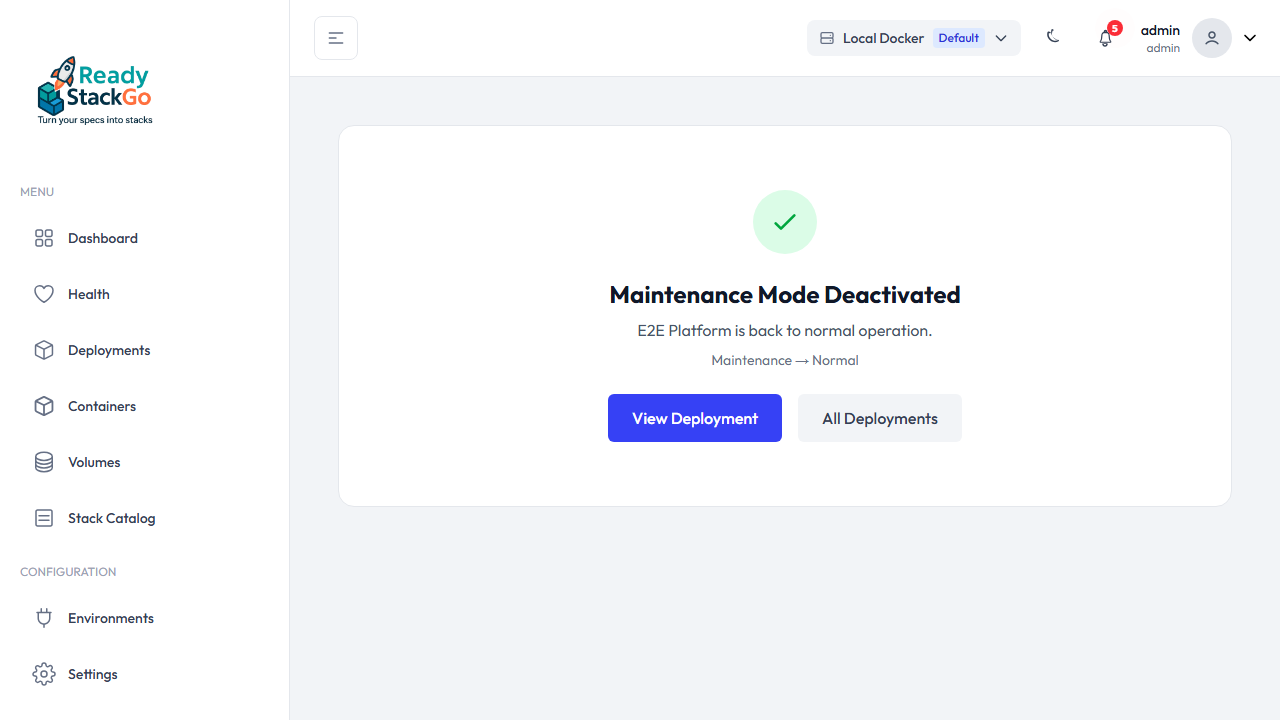
Click Exit Maintenance Mode to confirm. ReadyStackGo restarts all containers and returns the product to Normal operation.
API Endpoint
Section titled “API Endpoint”Maintenance mode can also be controlled via the REST API:
PUT /api/environments/{environmentId}/product-deployments/{productDeploymentId}/operation-modeRequest Body
Section titled “Request Body”| Field | Type | Required | Description |
|---|---|---|---|
mode | string | Yes | "Maintenance" or "Normal" |
reason | string | No | Optional reason for the maintenance |
Examples
Section titled “Examples”Activate maintenance:
{ "mode": "Maintenance", "reason": "Scheduled database migration"}Exit maintenance:
{ "mode": "Normal"}HTTP Status Codes
Section titled “HTTP Status Codes”| Code | Meaning |
|---|---|
| 200 | Mode changed successfully |
| 404 | Product deployment not found |
| 409 | Transition blocked — trigger ownership violated (e.g., manually exiting observer maintenance) |
Error Handling
Section titled “Error Handling”| Situation | Behavior |
|---|---|
| Manual exit during observer maintenance | Blocked with HTTP 409 — observer controls the exit |
| Product already in the desired mode | No action, successful response (no-op) |
| Observer reports Normal during manual maintenance | No action — manual trigger takes precedence |