Container Management
The Container Management page displays all Docker containers in an environment in real time. It shows health status, stack membership, and port mappings — and allows you to start, stop, or remove containers directly as well as stream their logs live.
Overview
Section titled “Overview”| Feature | Description |
|---|---|
| Three view modes | List, Stack grouping, Product grouping |
| Health status | Based on RSGO health monitoring (not Docker HEALTHCHECK) |
| Container actions | Start, Stop, Remove (for unmanaged containers) |
| Live logs | Real-time log streaming with auto-scroll |
| Orphaned stacks | Detection and repair of orphaned stacks |
View Modes
Section titled “View Modes”List View
Section titled “List View”The default view shows all containers in a flat table.
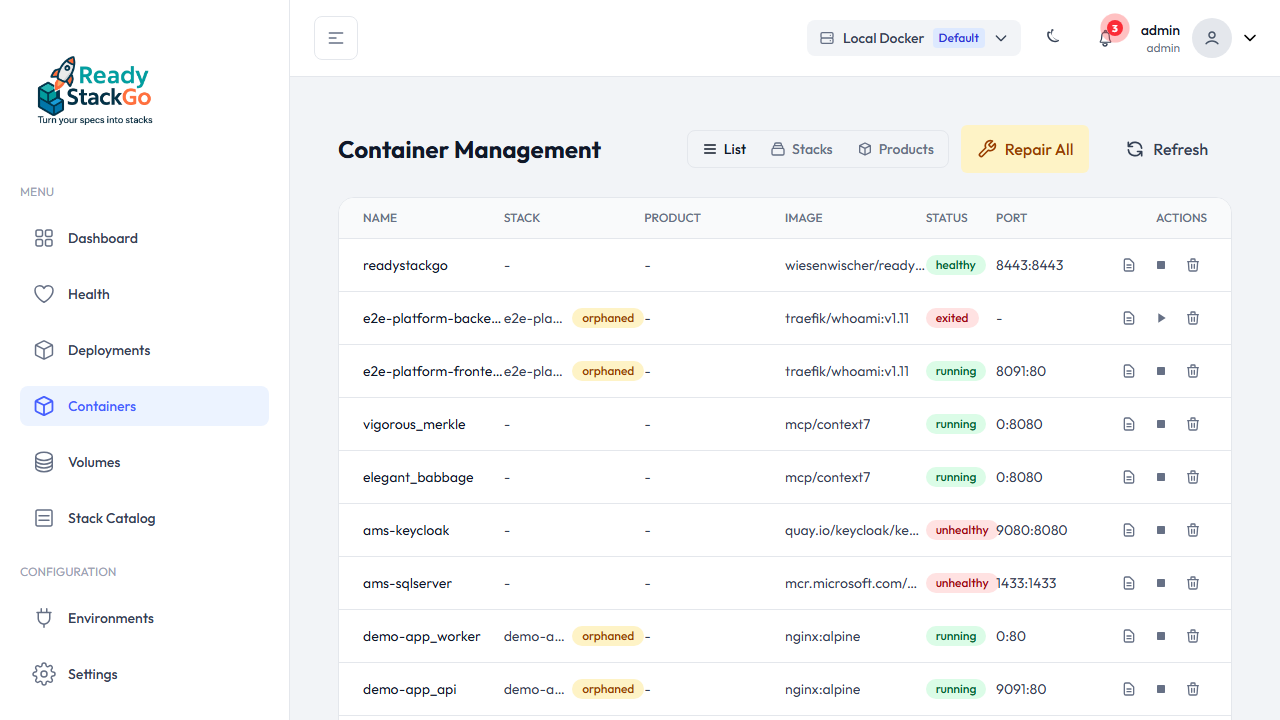
Columns in the list view:
| Column | Content |
|---|---|
| Container Name | Name of the container |
| Stack | Associated stack name (with “Orphaned” badge if no deployment record exists) |
| Product | Product name (if part of a product deployment) |
| Image | Docker image reference |
| Status | Health status badge (healthy, unhealthy, starting, none) |
| Port | Primary port mapping (public:internal) |
| Actions | Start/Stop, Logs, Remove |
Stack View
Section titled “Stack View”Groups containers by Docker stack labels. Ideal for seeing which containers belong to which stack.
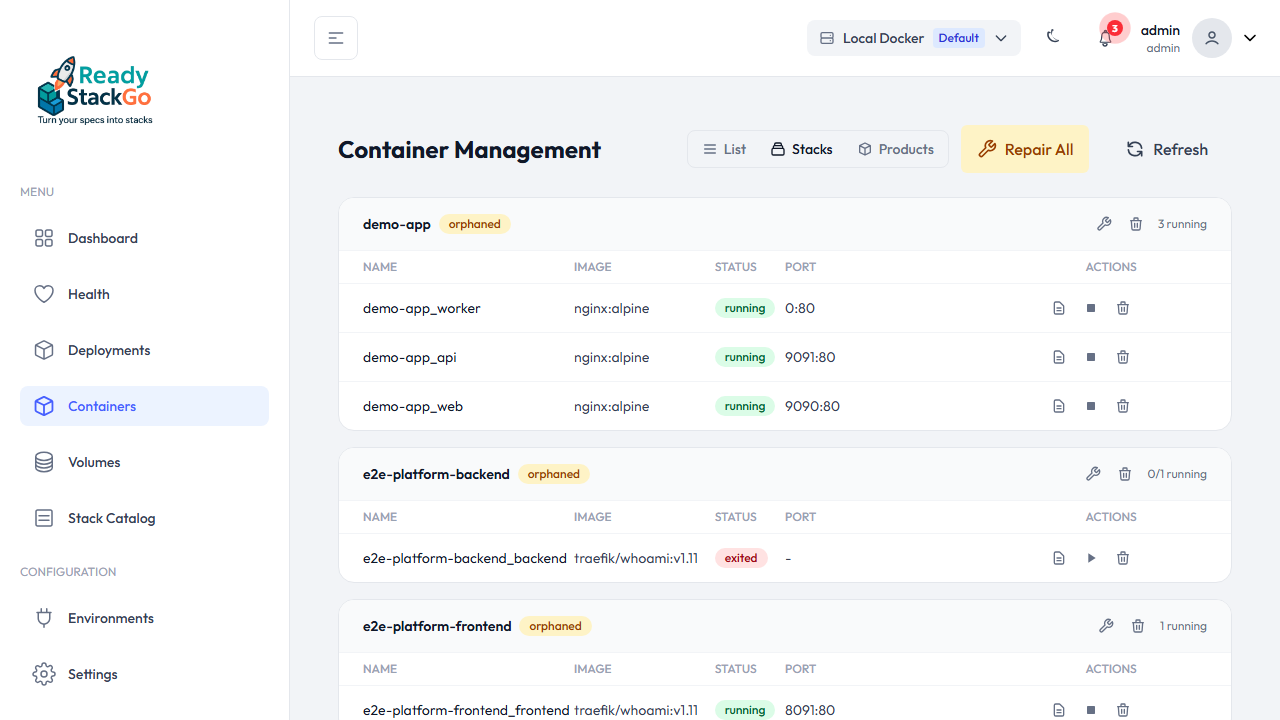
Each stack group shows:
- Stack name as a header with the number of running containers
- “Orphaned” badge if no deployment record exists in the database
- For orphaned stacks: Repair (create deployment record) and Remove All buttons
Product View
Section titled “Product View”Groups containers by products and their stacks — ideal for a structured overview of all deployed products.
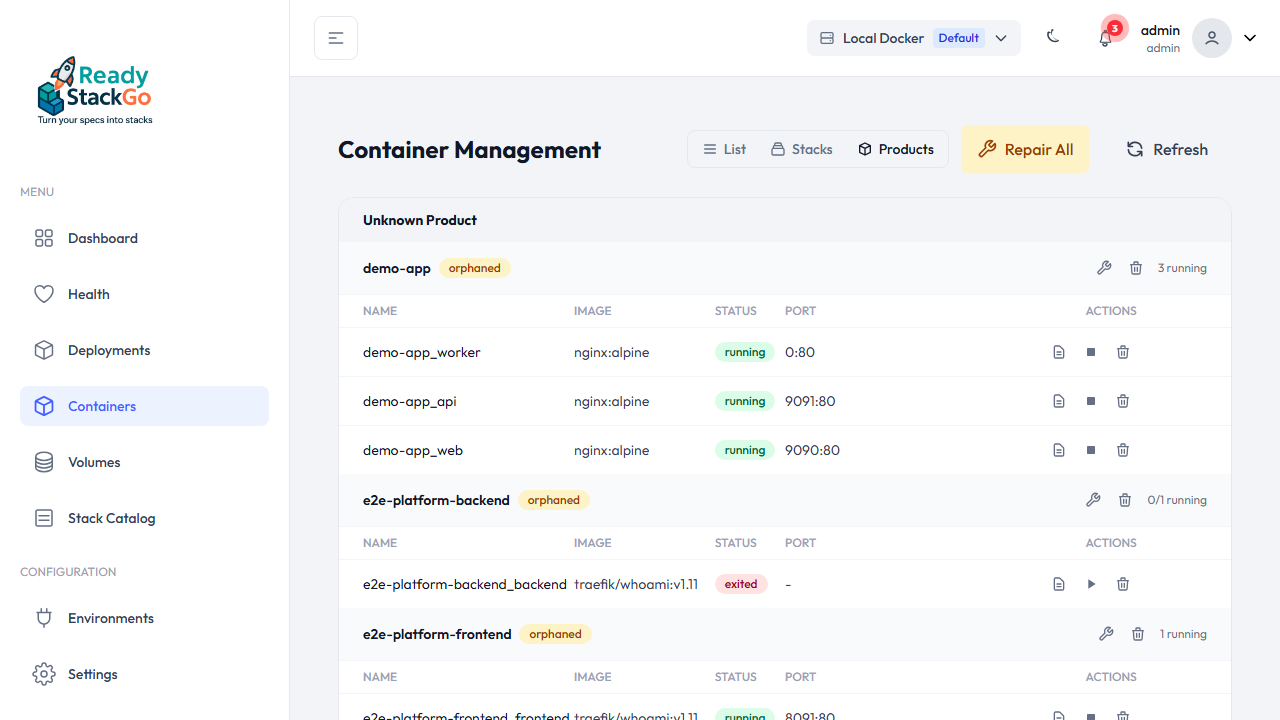
The hierarchy is: Product → Stack → Container. Containers without a product assignment appear in the “Unmanaged” section.
Health Status
Section titled “Health Status”ReadyStackGo uses its own HTTP health monitoring instead of the native Docker HEALTHCHECK. This prevents false “unhealthy” reports when diagnostic tools (curl, wget) are not available in the container image.
| Status | Color | Meaning |
|---|---|---|
| healthy | green | Container is running and passes all health checks |
| unhealthy | red | Health checks are failing or container is stopped |
| starting | yellow | Container is starting up |
| none | gray | No health check configured |
For containers not monitored by any stack deployment, the following fallback logic applies:
state = running→ healthystate = restarting / paused→ degradedstate = exited / dead→ unhealthy
Container Actions
Section titled “Container Actions”Start / Stop
Section titled “Start / Stop”Use the action buttons to start or stop a container directly. A spinner is shown during the action and the button is disabled.
Remove
Section titled “Remove”The remove button (trash icon) prompts for confirmation before deleting the container. Running containers are force-removed.
Container Logs
Section titled “Container Logs”Click the log icon to open the log view for the selected container.
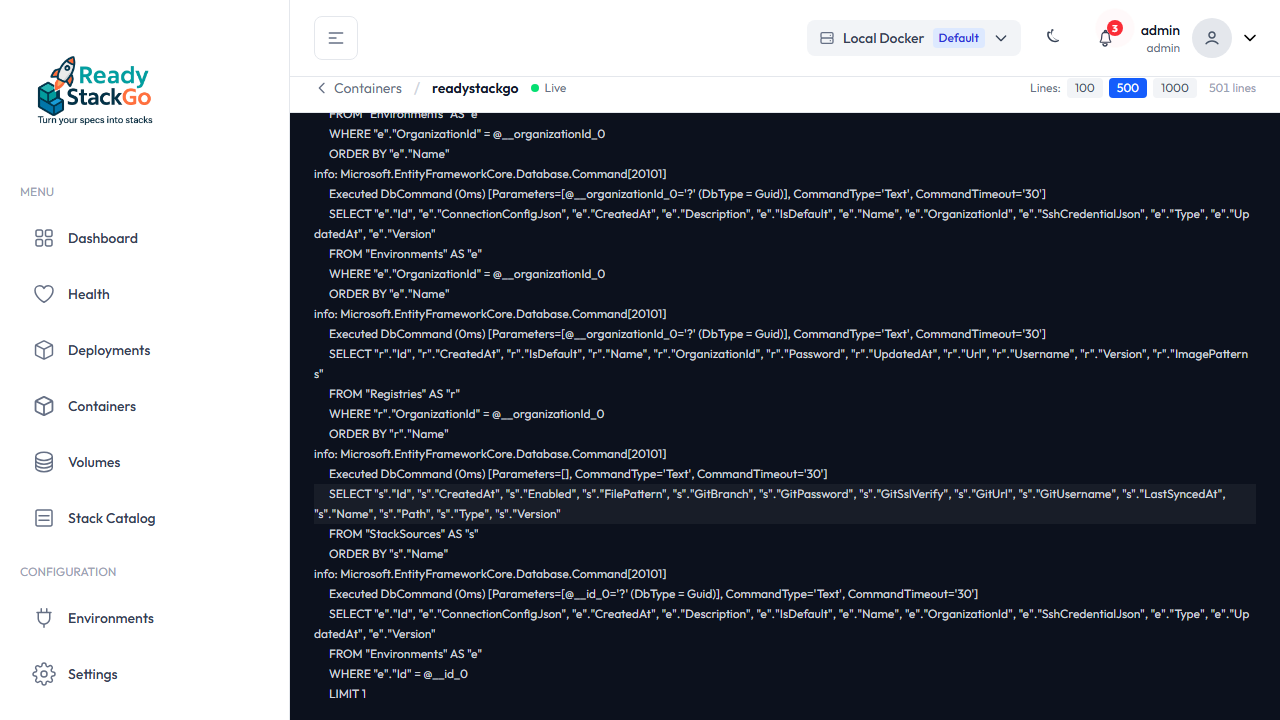
Features of the log view:
- Live streaming via WebSocket — logs appear in real time
- Tail selection — load 50, 100, 200, or 500 historical log lines
- Auto-scroll — follows new log lines automatically; disables on manual scroll
- Scroll-to-bottom button — appears when scrolled up
- Connection indicator — shows whether the WebSocket connection is active
- Stream-end indicator — appears when the container stops
Orphaned Stacks
Section titled “Orphaned Stacks”A stack is considered “orphaned” when Docker containers with the label rsgo.stack=<name> exist but no corresponding deployment record is present in the database. This can happen after manual Docker operations or data loss.
Two actions are available for orphaned stacks:
| Action | Description |
|---|---|
| Repair | Creates a new deployment record — containers are managed by ReadyStackGo from that point on |
| Remove All | Removes all containers of the orphaned stack |
Repair All repairs all orphaned stacks in the environment at once.
API Endpoints
Section titled “API Endpoints”| Method | Endpoint | Description | Permission |
|---|---|---|---|
GET | /api/containers?environment={envId} | List all containers | Deployments.Read |
GET | /api/containers/context?environment={envId} | Stack/product context | Deployments.Read |
POST | /api/containers/{id}/start?environment={envId} | Start a container | Deployments.Update |
POST | /api/containers/{id}/stop?environment={envId} | Stop a container | Deployments.Update |
DELETE | /api/containers/{id}?environment={envId}&force={bool} | Remove a container | Deployments.Update |
GET | /api/containers/{id}/logs?environment={envId}&tail={n} | Log stream | Deployments.Read |
POST | /api/containers/orphaned-stacks/{stackName}/repair?environment={envId} | Repair orphaned stack | Deployments.Update |
DELETE | /api/containers/orphaned-stacks/{stackName}?environment={envId} | Remove orphaned stack | Deployments.Update |
POST | /api/containers/repair-all-orphaned?environment={envId} | Repair all orphaned stacks | Deployments.Update |
Authentication: JWT Bearer Token or API Key.
Error Handling
Section titled “Error Handling”| Situation | Behavior |
|---|---|
| API unreachable | Red error banner at the top of the page |
| Container not found | 404 response, error message in the UI |
| Start/Stop fails | Error message in the container row |
| WebSocket connection lost | Reconnect indicator in the logs view |